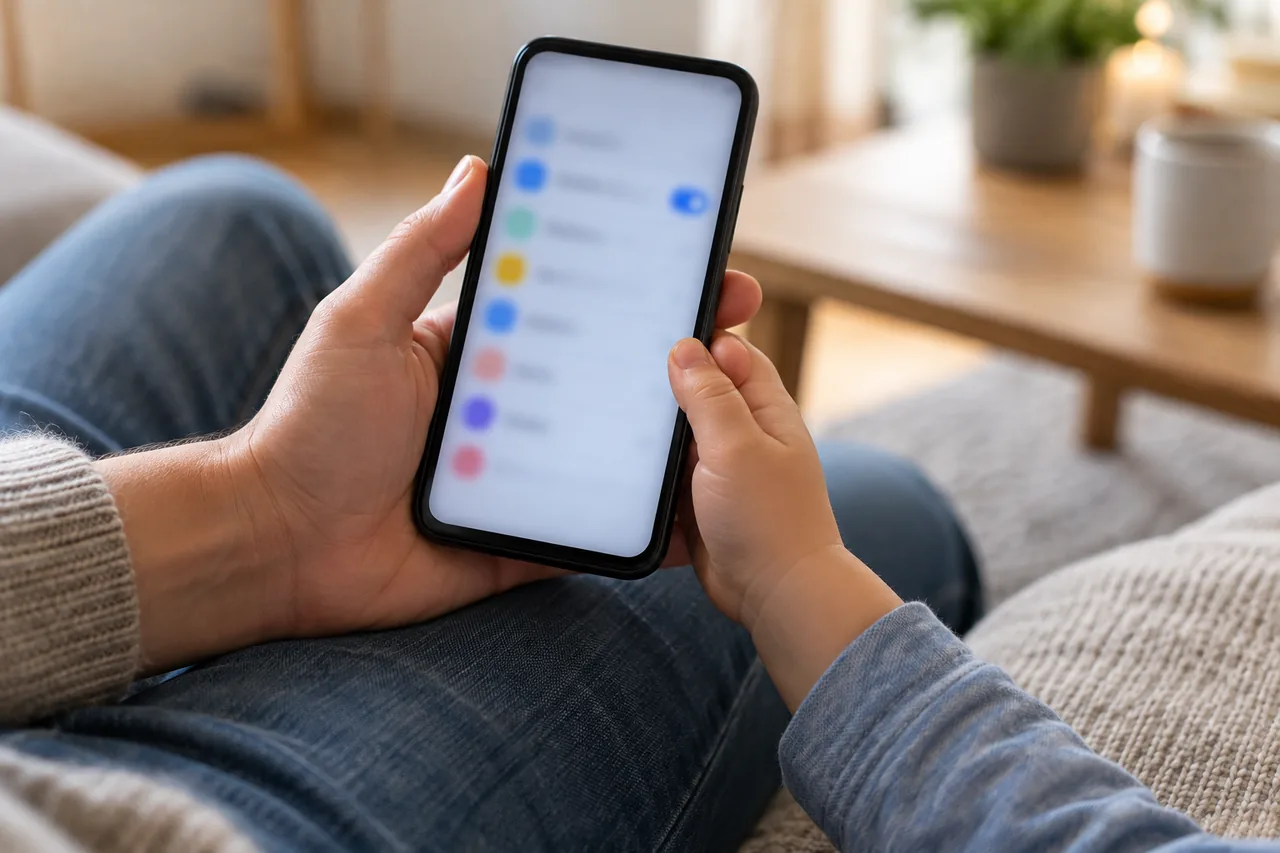
An example: Ciarán and Aoife set up her first iPhone
Fictional example: Ciarán in Galway is giving his daughter Aoife (12) her first iPhone. Before she takes it to school, he updates his own iPhone and hers to the latest software and adds her to Family Sharing with her own Apple Account.
They sit down together on Saturday morning. Ciarán checks that purchase approval is on, picks age ratings for apps and films and sets a Screen Time schedule for school nights. Aoife asks why a chat app her friends use is not allowed. They look at its age rating together and agree to talk about it again after the mid-term break.
Finally, Ciarán goes through every setting with Aoife. She knows she can always ask him for more time or a new app.
Screen Time or Family Link: what do you set where?
Both systems work the same way: you manage your child's account from your own device. On iPhone you need Family Sharing and a separate Apple Account for your child that is not shared; on Android, the Family Link app.
According to Apple, Screen Time introduces new parental controls in iOS 27. To use them, every device in your Family Sharing group must be updated. With older versions you can still set the controls directly on your child's device. On Android, Google says time limits work on devices with Android 7 and up.
| Task | iPhone: Screen Time | Android: Family Link |
|---|---|---|
| Where you set it | On your iPhone under Settings › Family | In the Family Link app on your phone |
| Control purchases | Ask to Buy with Require Purchase Approval | Require approval for, under the Google Play controls |
| Age-appropriate content | Content restrictions and website filtering | Google Play filters by maturity level |
| Limit time | Screen Time schedule and Time Allowances | Daily limit, app limits, lock device |
| Defaults by age | Ask to Buy and Ask to Browse on by default under 13 | Own account from 13 to 16, depending on the country |
How do you set up Screen Time on iPhone?
Set up Family Sharing first and add your child with their own Apple Account. Also save yourself in your child's contacts so that their requests reach you. All of the following paths start on your own iPhone. If asked, enter your Screen Time passcode.
iPhone (iOS 27): on your own iPhone
- Settings › Family › [your child's name] › Apps & Websites › Restrictions › Ask to Buy: turn on Require Purchase Approval.
- Settings › Family › [your child's name] › Content & Privacy Restrictions: under Content Restrictions, choose Don't Allow, Allow All or an age rating for each type of content.
- Settings › Family › [your child's name] › Apps & Websites › Restrictions › Filtering under Websites: choose Limit Adult Websites or Ask to Browse.
- Settings › Family › [your child's name] › Screen Time Schedule: turn on Schedule, tap Add Schedule and select the days.
- Settings › Family › [your child's name] › Time Allowances: tap the Add button and follow the on-screen instructions.
- Settings › Family › [your child's name] › Allowed Contacts › During Screen Time: choose Contacts Only, Contacts & Groups with at least one Contact, or Everyone.
Menu path as given in the manufacturer’s help; it may differ by device and version: support.apple.com
How do you set up Family Link on Android?
For a younger child, you create a Google Account with supervision. If your child already has their own account, you can add supervision later. Google says your child must agree and live in the same country as you, and you must be 18 or older, or the appropriate age in your country.
Android: approve purchases and downloads (Family Link app)
- Open the Family Link app and select your child at the top left.
- Tap Controls › Google Play.
- Under Purchases & download approvals, tap Require approval for and choose All content, Paid content only, In-app purchases only or Never.
Menu path as given in the manufacturer’s help; it may differ by device and version: support.google.com
Android: age ratings and single apps (Family Link app)
- In the Family Link app, select your child and tap Controls › Google Play at the bottom.
- Under Apps & games, Movies, and TV, choose the highest maturity level you want to allow.
- To block one app: Screen time › Time limits › App limits, select the app, tap the Allowed toggle so that it shows Blocked, then tap Done.
Menu path as given in the manufacturer’s help; it may differ by device and version: support.google.com
Android: set a daily limit (Family Link app)
- Open Family Link and select your child at the top left.
- At the bottom left, tap Screen time › Time limits.
- Switch on Daily limit, tap Weekly schedule, pick a day and enter the allowed screen time.
- To cover every day, tap Apply to all days of the week, then Done.
Menu path as given in the manufacturer’s help; it may differ by device and version: support.google.com
If the phone is locked, Google says your child can still answer calls and tap Emergency, as long as the device has a calling plan. Menu names on your child's phone may differ depending on the manufacturer and Android version. Afterwards, you can review which permissions each app has.
How do you stop unwanted purchases?
On iPhone, Apple switches Ask to Buy on by default for children under 13. Depending on the country or region, it is also on by default for children under 18 and cannot be turned off. If it is off, turn it on yourself: every purchase then needs your approval.
On Android there is an important limit: Google states that purchase approval settings only apply to purchases made through Google Play's billing system. Spain's INCIBE points out the same limit in its guide to Android controls. So do not store your own bank card in your child's account.
The Swiss platform Jugend und Medien adds practical tips:
- Switch off in-app purchases or protect them with a password.
- Choose a prepaid deal or a contract with a spending cap for children.
- Ask your mobile provider to block premium-rate numbers.
Games consoles have their own spending limits: see Christmas console: set up parental controls and spending limits.
What changes as your child gets older?
Apple ties some defaults to age: Ask to Buy and Ask to Browse are on by default for children under 13, and Limit Adult Websites for children under 18. Depending on your country or region and your child's age, some parental controls are already on.
Google sets a minimum age for managing your own Google Account, and it differs across Europe. When your child reaches it, Google emails both you and your child. Supervision settings stay the same until your child decides to update their account. Until they turn 18, children need a parent's approval to stop supervision.
| Country | Own Google Account from | Local rule or help |
|---|---|---|
| Germany | 16 | Same threshold as Ireland, Luxembourg and the Netherlands |
| Austria | 14 | Saferinternet.at suggests asking your mobile or internet provider about child-protection extras |
| Switzerland (not in the EU) | 13 (Google default, not on the list) | Jugend und Medien: set up filters as soon as children go online unsupervised |
| France | 15 | Since 13 July 2024, new connected devices sold in France must offer free parental controls from first start-up |
| Italy | 14 | Internet providers must offer free parental controls, switched on in offers for minors (AGCOM; deadline 21 November 2023) |
| Spain | 14 | INCIBE runs the cybersecurity helpline 017 and publishes guides to parental control tools |
At EU level, there is a proposal for a regulation on protecting minors online, the KIDS Act. It is not law yet. According to the European Commission, app stores would have to age-rate every app, including video games. Feedback is open until 26 November 2026; Switzerland would not be covered automatically. For today's rules on social networks, see Social media age limits: what applies in Europe and what's next.
How do you talk the settings through with your child?
Austria's Saferinternet.at notes that technical filters and blocks cannot offer 100 per cent protection. Jugend und Medien puts it this way: technical protection is important, but not enough.
Secret monitoring can feel like a breach of trust, especially to older children, warns Saferinternet.at. So tell your child which settings are active and why. For older children, Saferinternet.at recommends using technical protection only by agreement and as an extra. Jugend und Medien also stresses that children have a right to privacy.
- What is set up? Show your child each setting on screen, including what you cannot see.
- How do requests work? Agree how quickly you will answer requests to buy, browse or get more time.
- What if something goes wrong? Your child can come to you without fearing an instant ban.
- When do you review? Pick a date, for example after the next school holidays, and adjust limits to age and maturity.
Ground rules on times, places and costs work best in writing, as described in First smartphone for your child: age, ground rules and settings.
Common mistakes
- Switching on controls in secret, which older children in particular can feel is a breach of trust, as Saferinternet.at warns.
- Saving a bank card in your child's account, although Android purchase approvals only cover Google Play's billing system.
- Forgetting to update one family device and then not finding the new iOS 27 options.
- Sharing your Screen Time passcode or Google password with your child.
- Never reviewing the settings as your child grows older.
Your checklist
The checkboxes are for your own reference. No entries are sent to us. To keep a copy, print the page or save it as a PDF using your browser menu.
Common questions
At what age can my child stop Family Link supervision?
Google sets a minimum age for managing your own account: 16 in Germany and Ireland, 15 in France, 14 in Austria, Italy and Spain, and 13 in unlisted countries such as Switzerland. Google then emails you and your child. Supervision stays until your child updates the account, and until 18 they need your approval to stop it.
Can I read my child's messages with Family Link?
No. For an existing account to which you add supervision, Google lists what you cannot do: you cannot read your child's emails or messages, listen to their calls or remotely check their screen. You also cannot see their past searches or their Chrome or YouTube history. Family Link is for setting limits, not for reading along.
Can my child make calls when the phone is locked?
With Family Link, Google says your child can still answer calls on a locked Android phone and tap Emergency to make a call, if the device has a calling plan. On iPhone, Allowed Contacts lets you decide who your child can communicate with. Also agree how your child can reach you urgently when out and about.
Sources and further information
Primary sources from public authorities, consumer organisations and providers. A source may be in another language; follow the guidance that applies to your service and where you live.
- Apple Support: Set up parental controls to manage your child's iPhone or iPadSource review date:
- Google For Families Help: Add & manage supervision on a current Google AccountSource review date:
- Google Account Help: Age requirements on Google AccountsSource review date:
- Google Account Help: How Google Accounts work when children turn 13 (or the applicable age)Source review date:
- European Commission: The KIDS Act explainedSource review date:
- Saferinternet.at (Austria): Technical child protection and how to set it up (in German)Source review date:
- Jugend und Medien (Switzerland): Smartphones and tablets (in German)Source review date:
- French Ministry of the Economy: Parental controls on connected devices (in French)Source review date:
- AGCOM (Italy): Protection of minors, parental control (in Italian)Source review date:
- INCIBE (Spain): Parental controls on Android (in Spanish)Source review date: