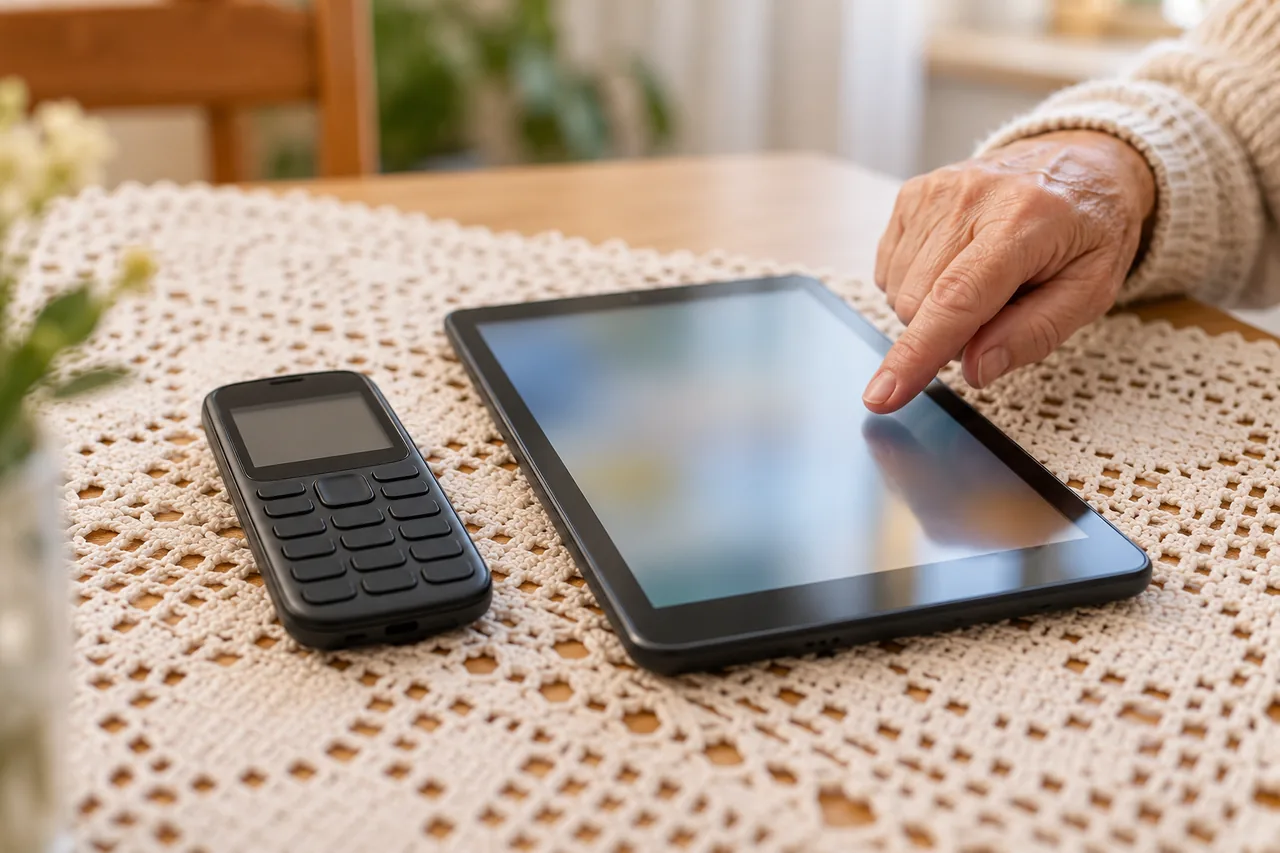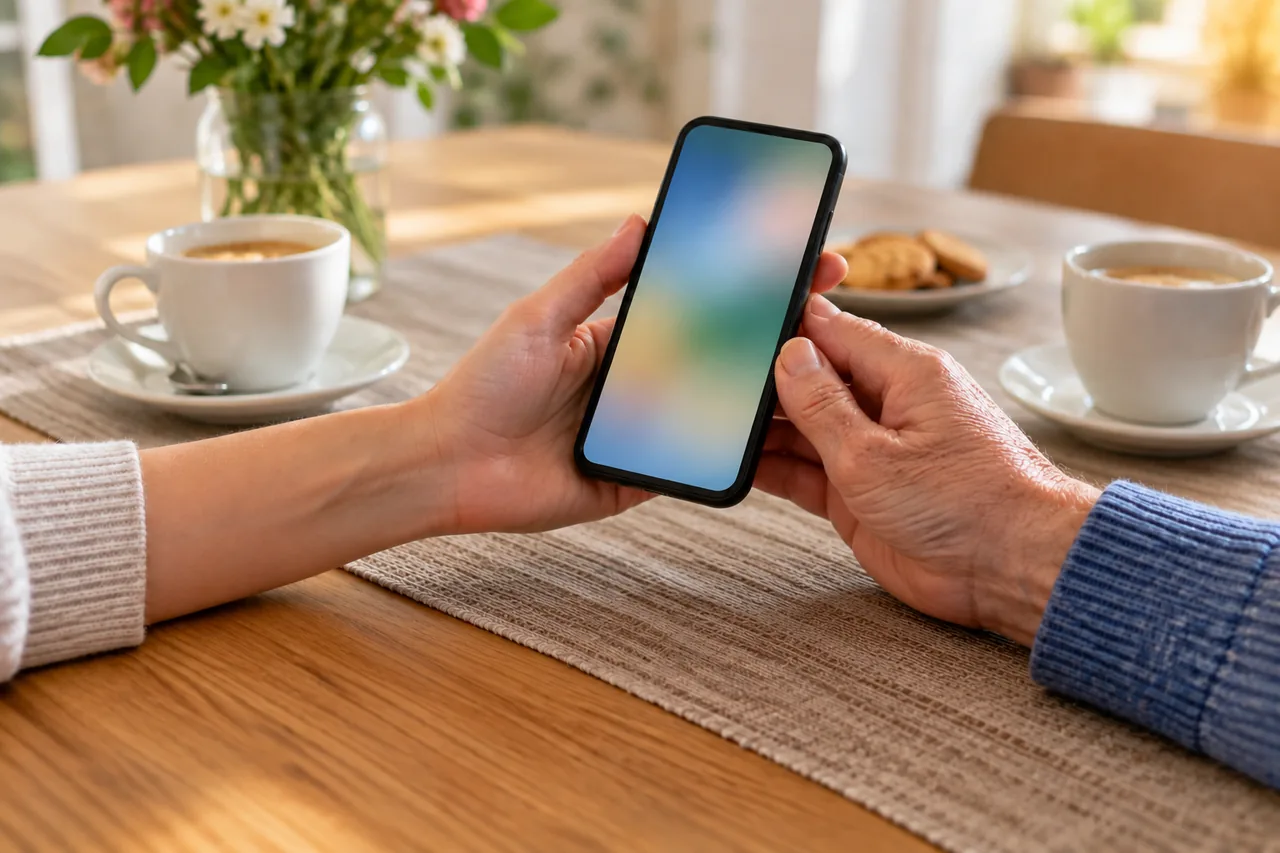
Where should you start?
Before changing anything, ask about everyday use: what is fiddly, what is used daily? Change only what the person names as a problem. It is still their phone.
Let them hold the phone and tap while you explain, so they can repeat each step later. Note every change on paper. Preparing a session of digital help shows how to plan the visit.
| Problem | iPhone | Android |
|---|---|---|
| Text too small | Text Size, or Larger Text if needed | Font size, up to 200% |
| Icons and buttons too small | Assistive Access with the Grid layout | Display size |
| Too many apps on the home screen | Remove from Home Screen | Drag the icon to Remove |
| Important people hard to find | Favourites in the Phone app | Add to favourites in Contacts |
| Missing details in an emergency | Medical ID in the Health app | Safety app |
How do you make the text bigger?
iPhone has two levels: the normal text size and, under Accessibility, Larger Text. Apple says Mail, Contacts, Calendar, Phone, Notes and other apps that support Dynamic Type follow this setting.
iPhone: make text bigger
- Go to Settings › Display & Brightness › Text Size.
- Drag the slider to the size you want.
- Still too small: go to Settings › Accessibility › Display & Text Size, tap Larger Text and drag the slider again.
Menu path as given in the manufacturer’s help; it may differ by device and version: support.apple.com
On Android, font size and display size are separate; display size also enlarges icons and buttons. According to Google, font size goes up to 200%, but some apps ignore the setting.
Android: enlarge text and display
- Open Settings, search for and select Font size, then move the slider.
- Select Display size if icons and buttons should grow too.
- For thicker letters: Settings › Accessibility › Display size and text › Bold text.
- Tap Reset settings to return to the original settings.
Menu path as given in the manufacturer’s help; it may differ by device and version: support.google.com
Tip: Test the size with a real message. Apple notes that very large text can make buttons hard to tap; reading and tapping should both be comfortable.
How do you tidy up the home screen?
Fewer icons mean less searching, and nothing needs deleting. On iPhone, rarely used apps move to the App Library and stay available there. Whole pages can be hidden, and new apps can go straight to the App Library.
iPhone: take apps off the Home Screen
- Touch and hold the app on the Home Screen.
- Tap Remove App, then Remove from Home Screen.
- To hide a page: touch and hold an empty area, tap the dots near the bottom, tap the circle under the page, then tap Done.
- For new apps: Settings › Home Screen & App Library › App Library Only.
Menu path as given in the manufacturer’s help; it may differ by device and version: support.apple.com
On Android, you drag an icon to Remove. If Uninstall appears as well, that option takes the app off the device. Google says some of these steps only work on Android 14 and up. Labels can also differ between manufacturers.
Android: remove icons from the home screen
- Touch and hold the icon on the home screen.
- Drag it up to Remove and lift your finger.
- Avoid Uninstall if the app should stay on the phone.
Menu path as given in the manufacturer’s help; it may differ by device and version: support.google.com
When does the simplified iPhone mode make sense?
If even a tidy Home Screen is too much, iPhone offers Assistive Access. It shows only chosen apps with large items, including adapted versions of Calls, Camera, Messages and Photos, either as Rows (a list) or as a Grid.
Apple says set-up is easiest with a trusted supporter such as a family member. The signed-in Apple Account should belong to the iPhone's user. A separate passcode protects the mode.
iPhone: set up Assistive Access
- Go to Settings › Accessibility › Assistive Access.
- Tap Set Up Assistive Access, then Continue.
- Check together that the Apple Account belongs to the person; if not, tap Change Apple Account.
- Choose the apps, then the Rows or Grid layout.
- Set the Assistive Access passcode and create a recovery Apple Account.
- Tap Start Using Assistive Access. To leave, triple-click the side button or Home button, tap Exit Assistive Access and enter the passcode.
Menu path as given in the manufacturer’s help; it may differ by device and version: support.apple.com
Tip: Create the recovery Apple Account straight away. Without it, Apple says a forgotten passcode means resetting the iPhone.
Whether this mode fits is the owner's call. If only the small text bothers them, the settings above are enough.
How can the most important people be reached quickly?
Agree on who belongs at the top, for example the children and the GP surgery. Write names the way the person says them: ‘Siobhán daughter’ rather than ‘S. M.’.
On Android, mark these people as favourites in the Contacts app; they then appear at the top of the list. A photo helps with recognising them. On iPhone, Apple's guide to making calls says you can start a call in the Phone app by tapping a favourite. Emergency contacts go into the Medical ID, described below.
Android: favourites in Contacts
- Open the Contacts app and select the person.
- Tap Add to favourites at the top.
- To add a photo: tap Edit at the top right, tap the photo, choose an option and save.
Menu path as given in the manufacturer’s help; it may differ by device and version: support.google.com
In case the phone is out of reach, a list on paper helps. See A paper contact card for when the phone is not at hand.
What belongs in the emergency details?
Both systems store emergency contacts and medical details for first responders. On iPhone this is the Medical ID. With Share During Emergency Call turned on, Apple says it is shared automatically when the person calls or texts the emergency services. Apple adds that this is not available in every country or region.
iPhone: Medical ID and emergency contacts
- Open the Health app, tap the Summary tab, then the profile picture.
- Tap Medical ID.
- Turn on Show When Locked and Share During Emergency Call if the person agrees.
- Tap Edit next to Emergency Contacts, tap the Plus button next to Add Emergency Contact, choose a contact and add the relationship.
- Tap Done.
Menu path as given in the manufacturer’s help; it may differ by device and version: support.apple.com
On Android, the details sit in the Safety app, called Personal Safety in the Play Store and Settings and available on some devices only. Google warns that anyone who picks up the phone can see the emergency information, even while it is locked.
Android: emergency information in the Safety app
- Open the Safety app, sign in with the Google Account and tap Your info.
- Tap Emergency contacts, then Add contact.
- Under Medical information, enter only what the person wants to share.
Menu path as given in the manufacturer’s help; it may differ by device and version: support.google.com
For medication, allergies or conditions, the person alone decides what is visible. Which details make medical sense is best discussed with their doctor. To check what else the lock screen reveals, see Check what your lock screen shows.
Where can older people get help with practising?
After the set-up, practise together: making a call, reading a message, picking a favourite. Apple notes that a supporter may need the iPhone passcode or Apple Account password during set-up. It is better if the owner types both in, as explained in Helping without collecting other people's passwords.
| Country | Help with learning | Emergency number |
|---|---|---|
| Germany | Digital-Kompass: over 300 local sites | 112, free |
| Austria | Digital Überall: free workshops for beginners, new dates from autumn 2026 | 112, free |
| Switzerland | Pro Senectute: smartphone and tablet courses, Infoline 058 591 15 15 | 112 is also used |
| France | Conseillers numériques: one-to-one help or workshops, national map online | 112, free |
| Italy | Punti Digitale Facile: over 3,000 set up by May 2025 under a recovery-plan measure due to end on 30 June 2026; ask your region what is still open | 112, free |
| Spain | INCIBE helpline 017: free, 8:00 to 23:00 daily, for security questions such as scams | 112, free |
According to the European Commission, 112 is free everywhere in the EU from landlines and mobiles. Switzerland is not an EU member, but the Commission lists it among countries that also use 112.
An example: Siobhán and her father at the kitchen table
Fictional example: Siobhán from Cork visits her father Declan. He has an iPhone and says: ‘The writing is tiny, and the screen is full of things I never use.’ Siobhán writes both points down before she touches the phone.
Declan holds the iPhone while she explains. He sets Larger Text while reading a message from his grandson, moves eight apps off the Home Screen and adds Siobhán and her brother as emergency contacts in his Medical ID.
He leaves his medication out, as he does not want it on the lock screen. A week later Siobhán rings to ask what works: the text could be one step bigger.
Common mistakes
- Changing everything at once, so the owner no longer recognises their phone.
- Tapping Uninstall instead of Remove on Android, which deletes the app rather than just the icon.
- Making text so large that buttons in apps become hard to hit.
- Setting up Assistive Access without a recovery Apple Account and then forgetting the passcode.
- Showing medical details on the lock screen without discussing who can then read them.
Your checklist
The checkboxes are for your own reference. No entries are sent to us. To keep a copy, print the page or save it as a PDF using your browser menu.
Common questions
Is there a senior mode on iPhone?
Apple does not use that name. For a much simpler interface there is Assistive Access in the Accessibility settings. It shows only chosen apps with large items and has its own passcode. If only the small text is a problem, text size settings and a tidy Home Screen may be enough.
Can anyone see my emergency information?
That depends on your settings. On Android, Google says shared emergency information can be seen by anyone who picks up the phone, even when it is locked. On iPhone, Show When Locked makes the Medical ID available to first responders. Enter only what you are happy to share. The setting can be switched off again on both systems.
Do I need my father's passcode or password?
For some steps, yes. Apple says a supporter may need the iPhone passcode or the Apple Account password when setting up Assistive Access. Ideally your father types them in himself while you sit next to him. Do not store his login details on your own phone. He decides whom he trusts with them.
Sources and further information
Primary sources from public authorities, consumer organisations and providers. A source may be in another language; follow the guidance that applies to your service and where you live.
- Apple Support: Make a call on iPhoneSource review date:
- Apple Support: Set up Assistive Access on iPhoneSource review date:
- Google: Get help during an emergency with your Android phoneSource review date:
- European Commission: 112, the EU's emergency phone numberSource review date:
- BAGSO and Deutschland sicher im Netz: Digital-Kompass (German)Source review date:
- Digital Austria: Digital Überall workshops (German)Source review date:
- Pro Senectute Switzerland: Digitalisation (German)Source review date:
- ANCT: Conseiller numérique (French)Source review date:
- INCIBE: Cybersecurity helpline 017 (Spanish)Source review date:
- Italian Department for Digital Transformation: notice on the Punti Digitale Facile (Italian)Source review date: