What do you need before you start?
Your phone needs NFC, the short-range radio link that contactless cards also use. You also need a payment app: Apple Pay, Google Wallet or, with many banks, their own app.
- A supported card: ask your bank whether it works with the wallet you want to use.
- A screen lock: Apple Pay requires Face ID, Touch ID or a passcode; Google Wallet a PIN, pattern, password or Class 3 biometrics.
- An unmodified phone: a rooted phone or an unlocked bootloader can stop Google Wallet from being set up for contactless payments.
- An Apple Account on your iPhone. In most countries you must be at least 13 to use Apple Pay.
Tip: Keep Find My (iPhone) or Find Hub (Android) switched on, or you won't be able to lock the phone remotely. See Phone gone: prepare your emergency route while you still have it.
How do you set up approval by face, fingerprint or passcode?
The screen lock is what approves each payment, so choose a passcode nobody around you could guess.
On iPhone, set up Face ID or Touch ID together with a passcode in the settings; Apple Pay also works with a passcode alone. With Face ID, you double-click the side button at the till and look at the phone.
On Android, set a PIN, pattern or password as the screen lock in your security settings, then add a fingerprint if your phone offers one. Menu names vary by manufacturer. Google Wallet does not accept Smart Unlock or Class 1 and 2 biometrics for payments; you then confirm with your PIN, pattern or password.
How do you add your card to the wallet?
iPhone: add a card to Apple Pay
- In Wallet, tap the ‘Add Card’ button and choose ‘Debit or Credit Card’.
- Tap ‘Continue’.
- Hold your card close to your iPhone, or tap ‘Enter Card Details Manually’.
- If your bank asks for further authentication, follow its instructions.
Menu path as given in the manufacturer’s help; it may differ by device and version: support.apple.com
Android: add a card to Google Wallet
- Open Google Wallet and tap ‘Add to Wallet’ at the bottom.
- Tap ‘Payment card’, then ‘New credit or debit card’.
- Use your camera or tap ‘Enter details manually’, then tap ‘Save and continue’.
- Read the issuer terms, tap ‘Accept’ and verify the card if asked.
Menu path as given in the manufacturer’s help; it may differ by device and version: support.google.com
From your banking app: for Google Wallet, log in to your bank's app or website and tap ‘Add to GPay’. If the button is missing, your bank probably does not support this route. For Apple Pay, some banks ask you to confirm the card in their app. Check such approvals as carefully as a transfer, as explained in Banking app approval request: read it before you confirm.
What happens at the till, and what does the shop see?
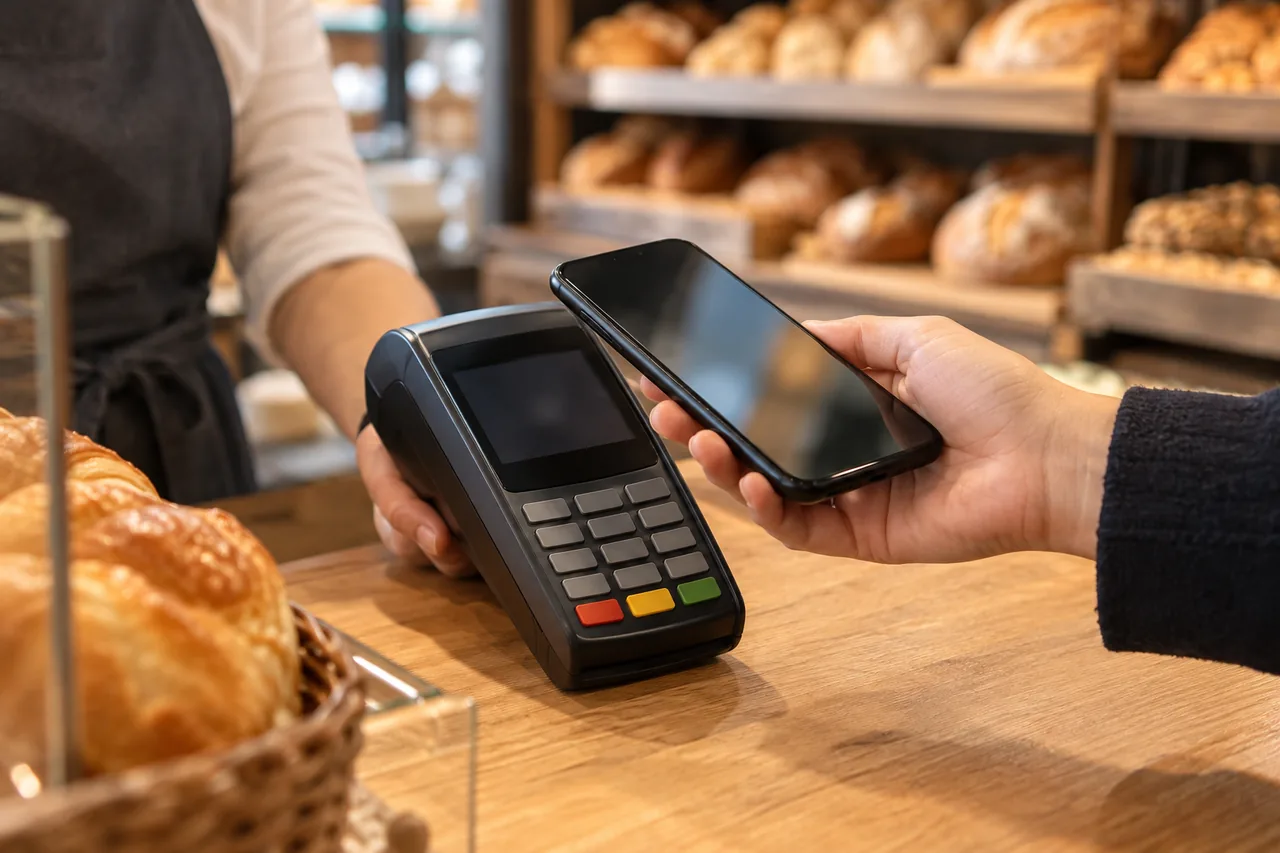
With Apple Pay, you approve every in-store payment with Face ID, Touch ID or your passcode. The shop does not receive your card number, but a Device Account Number and a security code valid for that one transaction. According to Apple, the Device Account Number is stored in a chip on your device and never on Apple servers.
| Question | Apple Pay | Google Wallet |
|---|---|---|
| How do you approve? | Face ID, Touch ID or passcode | Screen lock |
| Paying without approval? | Only with an Express Mode travel card | Only for transit, if you switch off confirmation |
| Remote block | Lost Mode; your bank can also suspend the card | Mark as lost; remove the card on the Google Wallet website |
| Card disappears if … | you turn off the passcode, sign out of iCloud or erase the device | you turn off the screen lock, don't open the app for 90 days or reset the phone |
Express Mode travel cards on iPhone pay without Face ID, and Apple notes they can't be removed or suspended while the device is offline. Google Wallet lets you switch off confirmation for transit payments. Decide whether the convenience is worth the risk.
Tip: Switch on notifications for every payment if your app offers them, so you notice an unfamiliar payment straight away.
Phone lost or stolen: what do you do, and in which order?
- Mark it as lost. On iPhone, Lost Mode locks the device and suspends payment cards. On Android, ‘Mark as lost’ locks the phone, and Google Wallet may then remove cards as a precaution.
- Have the card blocked. Ask your bank to suspend it in your wallet as well; according to Apple, that works even if the phone is offline.
- Remove the card remotely. For Google Wallet, open the card on the Google Wallet website and remove it from the lost device. For Apple Pay, use icloud.com or your Apple Account.
- Erase only as a last step. It can't be undone, and a factory-reset Android phone no longer shows up in Find Hub.
iPhone: turn on Lost Mode
- Open Find My on another Apple device. Without a second Apple device, you can also turn on Lost Mode at icloud.com/find.
- Choose ‘Devices’, select your iPhone and scroll to ‘Lost [device]’.
- Tap ‘Lost Mode’ and follow the onscreen steps to show your contact details.
Menu path as given in the manufacturer’s help; it may differ by device and version: support.apple.com
Android: mark the phone as lost
- On another Android device, open Find Hub, or go to google.com/android/find in a browser.
- Sign in, using ‘Sign in as guest’ on a friend's device, and select your phone.
- Tap ‘Mark as lost’, then ‘Next’, add contact details and a message, and tap ‘Mark as lost’ again.
Menu path as given in the manufacturer’s help; it may differ by device and version: support.google.com
For next steps such as blocking your SIM, see Lost phone: lock it, use backup routes and sort out your contacts.
Who pays if someone uses your phone to pay?
Under the EU Payment Services Directive (EU) 2015/2366 of 25 November 2015, your liability for unauthorised payments is limited to a maximum of €50, except in cases of fraud or gross negligence. You are not liable for payments made after you inform your bank. Gross negligence means conduct showing a significant degree of carelessness, so never keep your unlock code on a note with the phone. Whether it applies depends on your case; this guide cannot replace individual advice.
| Country | How to block | Before you report |
|---|---|---|
| Germany | Bank or 116 116 hotline, 24/7; from abroad +49 30 4050 4050 | Up to €50, unless fraud or gross negligence |
| Austria | Tell your bank without delay | Up to €50 for slight negligence; gross negligence or intent: generally the full amount |
| Switzerland | Call your card issuer immediately | No EU cap; banks generally cover losses only if you complied with the card terms |
| France | 0 892 705 705 (premium rate, 24/7) or your bank's app | Up to €50; contest payments up to 13 months after the debit |
| Italy | At once, usually via a dedicated number; a police report may be requested | Up to €50, except gross negligence |
| Spain | Bank app, website or phone; report a theft to the Policía, Guardia Civil or a court | Up to €50, unless you were negligent |
Switzerland: the EU directive does not apply. The Swiss Banking Ombudsman notes that banks generally only cover such losses where the client has complied with the card terms and is not at fault, so report a loss by phone immediately.
An example: Liam's phone stays on the tram
Fictional example: Liam, an Irish engineer living in Vienna, pays with Apple Pay. He uses a six-digit passcode and Face ID. One evening he leaves his iPhone on a tram seat. At home he signs in at icloud.com/find on his laptop, turns on Lost Mode and adds his flatmate's number. The iPhone is locked and Apple Pay is suspended.
He then calls his bank's blocking number, which he keeps on a card in his wallet, and has the debit card blocked, including in Apple Pay. Two days later the phone turns up at the lost property office. Liam adds his replacement card to Wallet again.
Common mistakes
- Turning off the screen lock for a moment: Google Wallet may remove your cards, and on iPhone they become unusable.
- Keeping your unlock code on a note with the phone.
- Locking the phone but not telling your bank, even though your liability only ends when you report the loss.
- Erasing the phone before marking it as lost: erasing can't be undone.
- Forgetting an Express Mode travel card, which pays without Face ID and can't be suspended offline.
Your checklist
The checkboxes are for your own reference. No entries are sent to us. To keep a copy, print the page or save it as a PDF using your browser menu.
Common questions
Can a thief simply pay with my stolen phone?
Not without your approval, as a rule. Apple Pay requires Face ID, Touch ID or your passcode for every in-store payment, and Google Wallet asks for confirmation with your screen lock. The exceptions are Express Mode travel cards on iPhone and transit payments without confirmation in Google Wallet. Still, mark the phone as lost at once and tell your bank.
Can I remove my card if I no longer have the phone?
Yes. For Google Wallet, sign in on the Google Wallet website, open the card and remove it from the lost device; online payments with the card remain possible. For Apple Pay, use icloud.com or your Apple Account. Your bank can also suspend the card in your wallet, and that works even if the phone is offline.
Do the EU rules apply in Switzerland?
No. Switzerland does not apply the EU Payment Services Directive, so the EU’s €50 cap does not apply there. Your card issuer's terms decide who bears a loss. According to the Swiss Banking Ombudsman, banks generally only cover losses where the client has complied with those terms. Report a loss by phone straight away and keep your PIN strictly confidential.
Sources and further information
Primary sources from public authorities, consumer organisations and providers. A source may be in another language; follow the guidance that applies to your service and where you live.
- Apple Support: Apple Pay security and privacy overviewSource review date:
- Google Wallet Help: Verify it’s you to make a purchaseSource review date:
- European Commission: Your rights when making payments in EuropeSource review date:
- EUR-Lex: Directive (EU) 2015/2366 on payment services in the internal marketSource review date:
- Verbraucherzentrale (Germany): Paying contactless (German)Source review date:
- oesterreich.gv.at (Austria): PayPass/NFC contactless (German)Source review date:
- Swiss Banking Ombudsman: Misuse of a bank card and cardholder due diligenceSource review date:
- economie.gouv.fr (France): Fraud, loss or theft of your bank card (French)Source review date:
- Banca d'Italia, Economia per tutti: Credit cards (Italian)Source review date:
- Banco de España: Fraudulent use of cards (Spanish)Source review date: