Why can codes get lost when you change phones?
An authenticator app generates one-time codes for signing in. Germany's Federal Office for Information Security (BSI) describes these apps as software that keeps generating new one-time passwords, based on time or on events. To do this, the app stores a secret for each account that the service also knows.
Where that secret is kept depends on the app and its settings. Google Authenticator, for example, keeps codes only on the device if you use it without a Google Account. Other devices, including your new phone, will not have them.
According to the BSI, if your second factor is missing or broken, you will usually lose access to the service. It therefore recommends registering several second factors where possible. Changing phones is a good moment to do so. For a comparison of the options, see SMS, app or passkey: which extra account protection suits you?.
What should you sort out before transferring anything?
As long as the old phone works, every option is still open. So prepare first:
- Open the authenticator app on the old phone and write down which accounts it generates codes for. The names are enough; you do not need the codes themselves.
- Check the app's settings to see whether it uses a backup or sync, and with which account.
- Find the recovery codes for your most important accounts. The BSI advises checking how a service's recovery mechanism works, for example by storing backup codes.
- Make sure the phone number and email address used for account recovery are still correct.
- Charge the old phone and keep it within reach until everything is done.
For tips on storing those codes so you can actually find them in an emergency, see Storing recovery codes safely and finding them again.
Which transfer method suits your app?
| Method | Works if … | You need | Watch out for |
|---|---|---|---|
| Sync via your Google Account | you use Google Authenticator with your Google Account | to sign in with the same Google Account on the new phone | Deleting a code removes it from all synced devices |
| Export by QR code | you use Google Authenticator without an account | both phones at the same time, the old one unlocked | Several accounts may produce several QR codes |
| Microsoft Authenticator cloud backup | backup was switched on on the old phone | the same device type: iPhone to iPhone or Android to Android | Work and school accounts need a new sign-in |
| Set up each account again | there is no transfer option or some accounts are missing | access to each account's security settings | Add the new device first, remove the old one afterwards |
| Recovery codes | the old phone is no longer available | the codes you saved earlier | Only works if you stored them in good time |
You can combine these methods. If one account does not come across with a backup, you set up just that one again.
How do you move Google Authenticator and Microsoft Authenticator?
Google Authenticator
If you use Google Authenticator with your Google Account, Google says your codes are synced. When you sign in with the same account on the new phone, they appear there automatically. Google states that it encrypts Authenticator codes in transit and at rest, and lists syncing as a best practice.
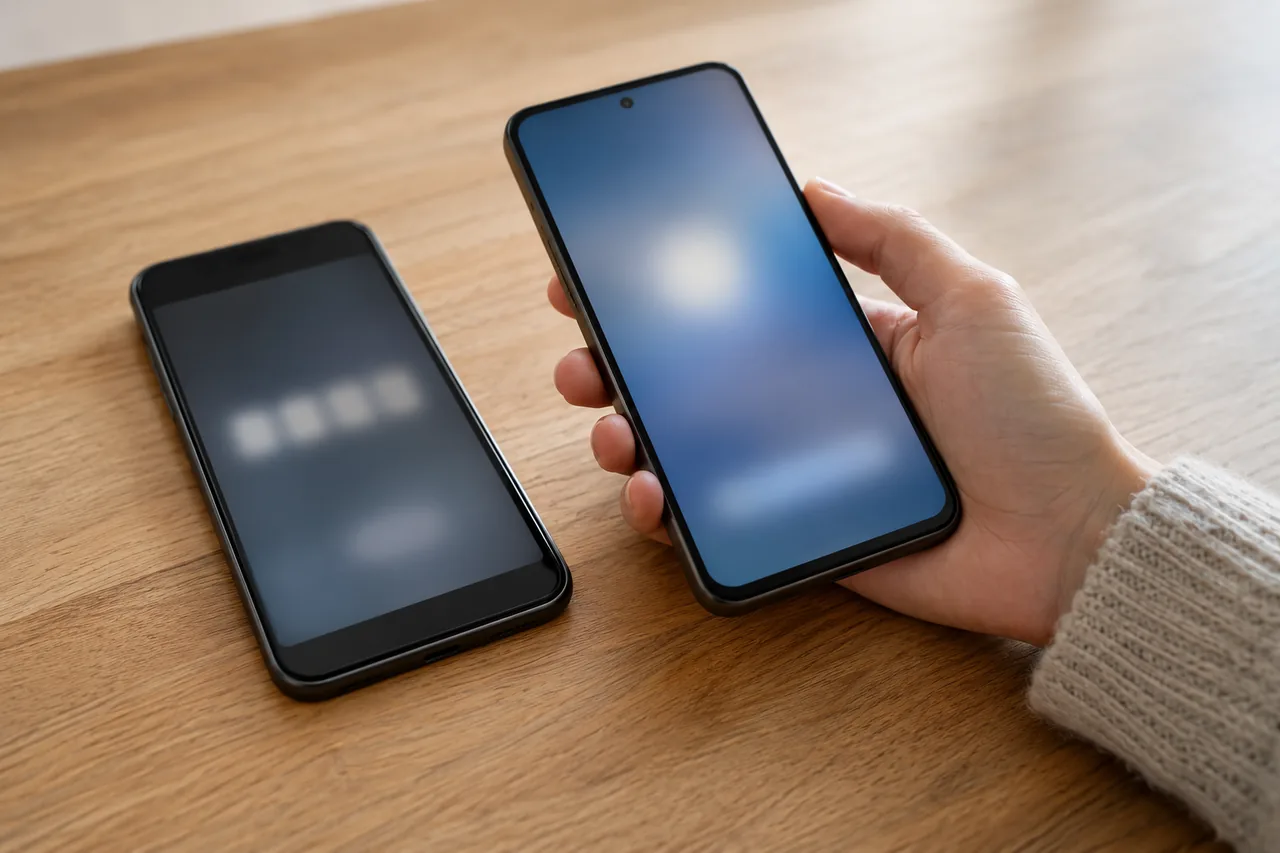
If you tapped ‘Use without an account’ when you first opened the app, the codes are only on the old phone. In that case, you move them from phone to phone with a QR code.
Google Authenticator: export on the old phone
- Open Google Authenticator, open the menu and tap Transfer codes › Export codes.
- Unlock the device, select the accounts and tap ‘Next’.
- The app shows a QR code. If you transfer several accounts, there may be more than one.
Menu path as given in the manufacturer’s help; it may differ by device and version: support.google.com
Google Authenticator: import on the new phone
- Install Google Authenticator, tap ‘Get Started’ and sign in to your Google Account.
- Open the menu and tap Transfer codes › Import codes.
- Scan the QR code shown on the old phone. You then get a confirmation that your codes have been transferred.
Menu path as given in the manufacturer’s help; it may differ by device and version: support.google.com
Microsoft Authenticator
Microsoft Authenticator restores accounts from a cloud backup. According to Microsoft, this only works on the same device type: accounts backed up on an iPhone cannot be restored on an Android phone. On an iPhone, the backup depends on three iCloud features, which also need to be on on the new device.
Microsoft Authenticator on iPhone: requirements for restoring
- Turn on iCloud Drive on your iPhone.
- Turn on iCloud Keychain.
- Turn on iCloud Backup.
Menu path as given in the manufacturer’s help; it may differ by device and version: support.microsoft.com
After restoring, Microsoft says codes for third-party accounts such as Amazon or Gmail are available again. For work or school accounts, only the account name is restored, so you need to sign in again.
What about accounts without a backup?
Not every app can transfer codes, and not every account comes across. In that case, set up sign-in again with the service itself while the old phone still generates codes.
- Sign in to the service and confirm with a code from the old phone.
- Open the account's security settings and add the authenticator app on the new phone. Follow the service's instructions.
- Confirm the setup with a code from the new phone.
- Only then remove the old device from the account.
Austria's Federal Ministry of Finance describes this order for its FinanzOnline tax portal: register the new device first, then remove the old one. Doing it the other way round may leave you without a valid second factor for a while.
Public authorities, banks and employers sometimes use their own apps or procedures. Read their guidance on changing devices before you switch, and allow time for a new activation if needed.
When is it safe to reset the old phone?
Only once you have signed in to every account on your list with a code from the new phone. It is fine to keep the old device for a few more days in case a rarely used account turns up that you missed.
Be careful with synced codes: if you delete a code in Google Authenticator that is synced with your Google Account, Google says it is deleted from all devices. So do not remove individual entries on the old phone. Reset the whole device instead, as described in Passing on an old phone: back up first, then sign out properly.
If the old phone is lost or stolen, Google says to make sure at once that nobody can reach the codes stored on it: erase it remotely, remove it from your Google Account if the codes were synced, or otherwise remove the codes at each service. More in Lost phone: lock it, use fallback options and sort out contacts.
Where can you get guidance in your country?
The steps for moving the app come from the app makers and do not depend on where you live. National authorities do publish advice on two-factor sign-in, though, and some public services have their own rules.
| Country | Body | Advice or rule | What it means for your phone switch |
|---|---|---|---|
| Germany | Federal Office for Information Security (BSI) | Use two-factor authentication whenever a service offers it; register several second factors where possible | Check how recovery works beforehand, for example via backup codes |
| Austria | Federal Ministry of Finance (FinanzOnline) | Mandatory since 1 October 2025 when signing in with FinanzOnline credentials rather than ID Austria; authenticator apps using the TOTP standard; not needed when signing in with ID Austria | Register the new device first, then remove the old one; keep the recovery code from the PDF to hand |
| Switzerland | National Cyber Security Centre (federal government) | Use 2FA whenever possible, at the very least for email, online banking and social media | Regularly check your 2FA settings and update your contact information |
| France | Cybermalveillance.gouv.fr | Turn on two-factor authentication when possible | The extra confirmation means only you can authorise a new device |
| Italy | SPID portal | For registration or sign-in problems, contact your own SPID identity provider; the portal lists each provider's support channels | If your SPID sign-in runs through an app, ask your provider how to switch phones |
| Spain | INCIBE | Turn on two-factor authentication on every online account that allows it | Keep backup codes in a safe place in case you lose your device or cannot open your authenticator app |
An example: Siobhán moves her codes
Fictional example: Siobhán from Cork is getting a new phone. She uses her authenticator app without an account, so the codes are only on the old device. First she writes the eight account names from the app on a sheet of paper and looks for her recovery codes. For her email account she finds none, so she creates new ones.
She then exports the accounts by QR code, scans them with the new phone and tests every account with a fresh code. Seven work straight away; she had missed one rarely used account during the export. Because the old phone still works, she sorts that out in a few minutes. She only resets the old device after a week without problems.
Common mistakes
- Resetting or selling the old phone before every account has accepted a code from the new one.
- Assuming that the phone's general data transfer brings the codes along, without checking in the app.
- Deleting individual synced entries on the old phone and thereby losing them on the new one too.
- Trying to restore a Microsoft Authenticator backup from an iPhone on an Android phone.
- Photographing the export QR code, forwarding it or leaving it in your photo library.
Your checklist
The checkboxes are for your own reference. No entries are sent to us. To keep a copy, print the page or save it as a PDF using your browser menu.
Common questions
Can I transfer my authenticator without the old phone?
Only if the codes were backed up or synced beforehand. With Google Authenticator linked to a Google Account, they appear on the new device after you sign in. The QR code export, on the other hand, needs the old phone. If neither is possible, use recovery codes, another registered second factor or the service's account recovery, then set up the app again for each account.
Are my codes safe in the cloud?
Google states that it encrypts Authenticator codes in transit and at rest. Anyone who takes over your Google Account, however, could sign in on their own device and reach the synced codes. So protect that account particularly well. If you prefer not to use the cloud, use the app without an account and transfer by QR code. You are then responsible for fallback options such as recovery codes.
I have already reset my old phone. What now?
Use a fallback for each affected account: recovery codes, another registered second factor or the service's official account recovery. Austria's FinanzOnline, for example, lets you state that you have no access to your registered device and enter your recovery code. Once you are back in, remove the old device and set up the app on the new phone.
Sources and further information
Primary sources from public authorities, consumer organisations and providers. A source may be in another language; follow the guidance that applies to your service and where you live.
- Google Account Help: Get verification codes with Google AuthenticatorSource review date:
- Microsoft Support: Restore account credentials from Microsoft AuthenticatorSource review date:
- BSI (Germany): Two-factor authentication (in German)Source review date:
- Federal Ministry of Finance (Austria): Two-factor authentication for FinanzOnline (in German)Source review date:
- Swiss federal government: S-U-P-E-R.ch – Double up on securing your accessSource review date:
- Cybermalveillance.gouv.fr (France): Managing your passwords (in French)Source review date:
- SPID (Italy): Get support from identity providers (in Italian)Source review date:
- INCIBE (Spain): Two-factor authentication (in Spanish)Source review date: