Organise the paper before capturing it
Fictional example: Eva scans paperwork for a household appliance. The invoice has two pages, with an additional note on the reverse. Only when comparing the file does she notice that automatic scanning captured the two fronts alone. She adds the missing reverse before filing the paper.
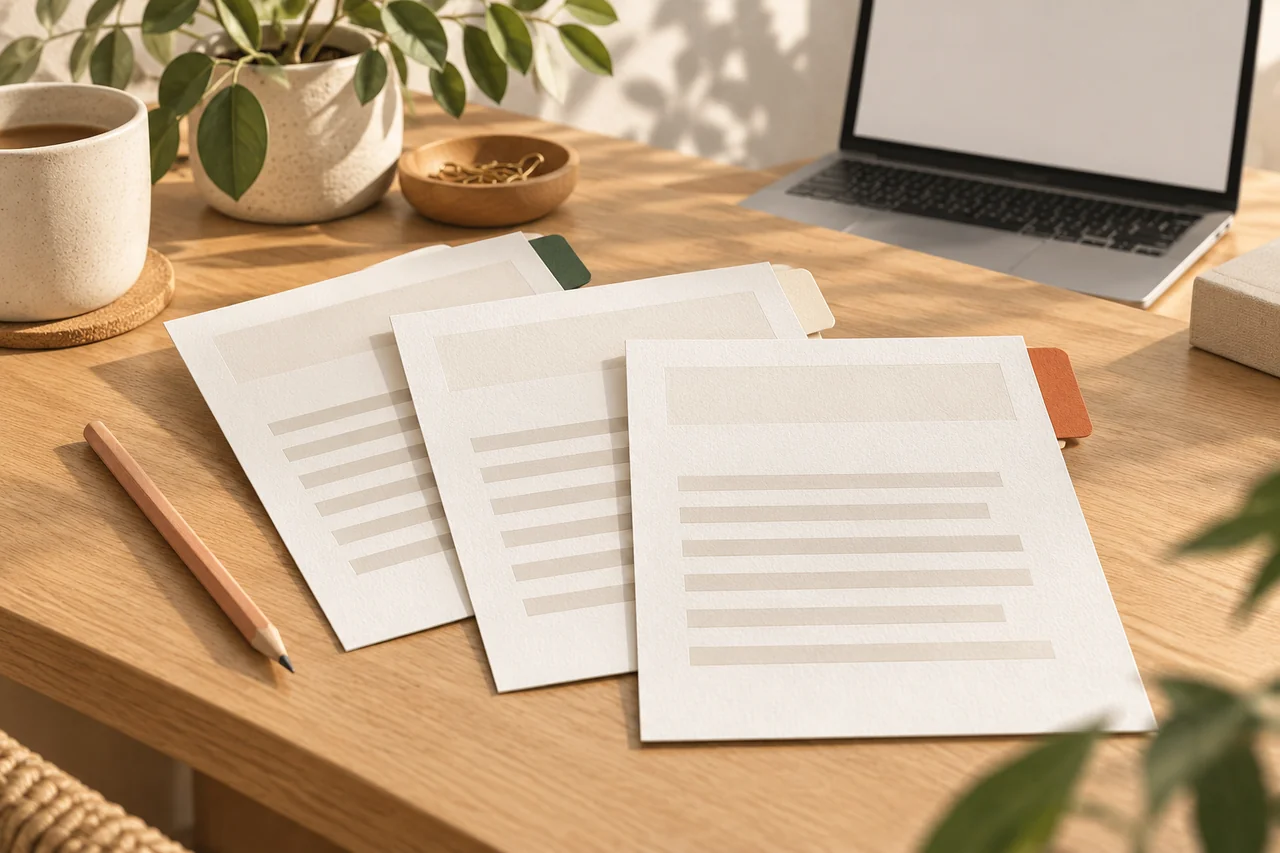
Put related sheets in their intended order before scanning. Check folds, small enclosures and reverse sides too. A note such as “three printed sides” gives you a simple target against which to check the final document.
Capture without losing the edges
Place the paper flat on a contrasting surface with even lighting. Keep shadows and reflections away from the text as far as possible. If the app detects edges automatically, review the selected corners yourself; correct detection is not guaranteed.
The controls depend on the device and application. Apple, for example, describes both automatic and manual capture and adjustment of page corners. You do not necessarily need an unfamiliar extra app. First check whether your existing device already provides a suitable scanning function.
Read every saved page
Open the finished file and work through it page by page. Are the count, sequence and orientation correct? Enlarge at least the smallest print, relevant amounts, dates and signature areas. A sharp first page says nothing about the quality of the remaining pages.
If an app recognises text automatically, compare important search terms and numbers with the image. Recognition can confuse characters. Do not reuse a recognised account number or amount without checking it. Preserve the visible document; a plain-text copy can lose layout and context.
Save it where you can find it again
Choose a name that explains the date, subject and document type without unnecessary sensitive details. A pattern such as “2026-10-17_Appliance_Invoice” is usually clearer than “Scan_037”. Use the relevant existing folder instead of creating a second confusing filing system.
Close the scanning app and open the file again from that folder. This checks the actual saved result, not just the capture preview. Back up important records independently as well. A preview inside an app does not prove that you have a complete, recoverable copy.
Treat originals and sharing deliberately
Whether a paper original must be retained depends on the document, purpose and any applicable requirements. This guide does not decide that question. For contracts, certificates or disputed matters, establish the need before destroying the paper.
Before sending a scan, check the recipient and complete file again. If it contains more personal information than necessary, establish an appropriate way to share less. A clean scan can make administration easier, but does not automatically give a copy legal status or make an inappropriate disclosure acceptable.
Your checklist
The checkboxes are for your own reference. No entries are sent to us. To keep a copy, print the page or save it as a PDF using your browser menu.
Common questions
Can a photograph be enough instead of a scan?
For some purposes, yes, if it is complete and readable. The recipient’s requirements and the information actually preserved are what matter.
Do I have to use text recognition?
No. It may help with searching, but does not replace a readable image or checking important details.
May I throw the paper away afterwards?
There is no universal answer. Check the retention needs and requirements for that particular document.
Sources and further information
Primary sources from public authorities, consumer organisations and providers. A source may be in another language; follow the guidance that applies to your service and where you live.
- Apple: Dokumente mit iPhone oder iPad scannenSource review date:
- Library of Congress: Persönliche digitale Dokumente erhaltenSource review date:
- BACS: Datensicherung und WiederherstellbarkeitSource review date: