A small problem on a crowded screen
Fictional example: Miriam asks a club colleague for help printing a page. Her screen shows the error, a medical invoice and a preview of a private message. Her colleague needs only the error text and printer model. Miriam closes the other windows and takes a fresh, smaller screenshot. She adds one sentence explaining what happened immediately before the error. The request becomes clearer without exposing information that has nothing to do with printing.
Prepare the screen before capturing it
First decide what the other person actually needs. Often the exact wording of an error, typed into a message, is enough. If an image would help, close sensitive windows and temporarily hide notifications. Check sidebars, account menus, browser tabs and the address bar too. Some links contain personal identifiers. Capturing the entire desktop should not be the automatic choice. Other people also have a privacy interest in messages they sent you, even when the messages appear on your own device.
Redact and inspect the exported image
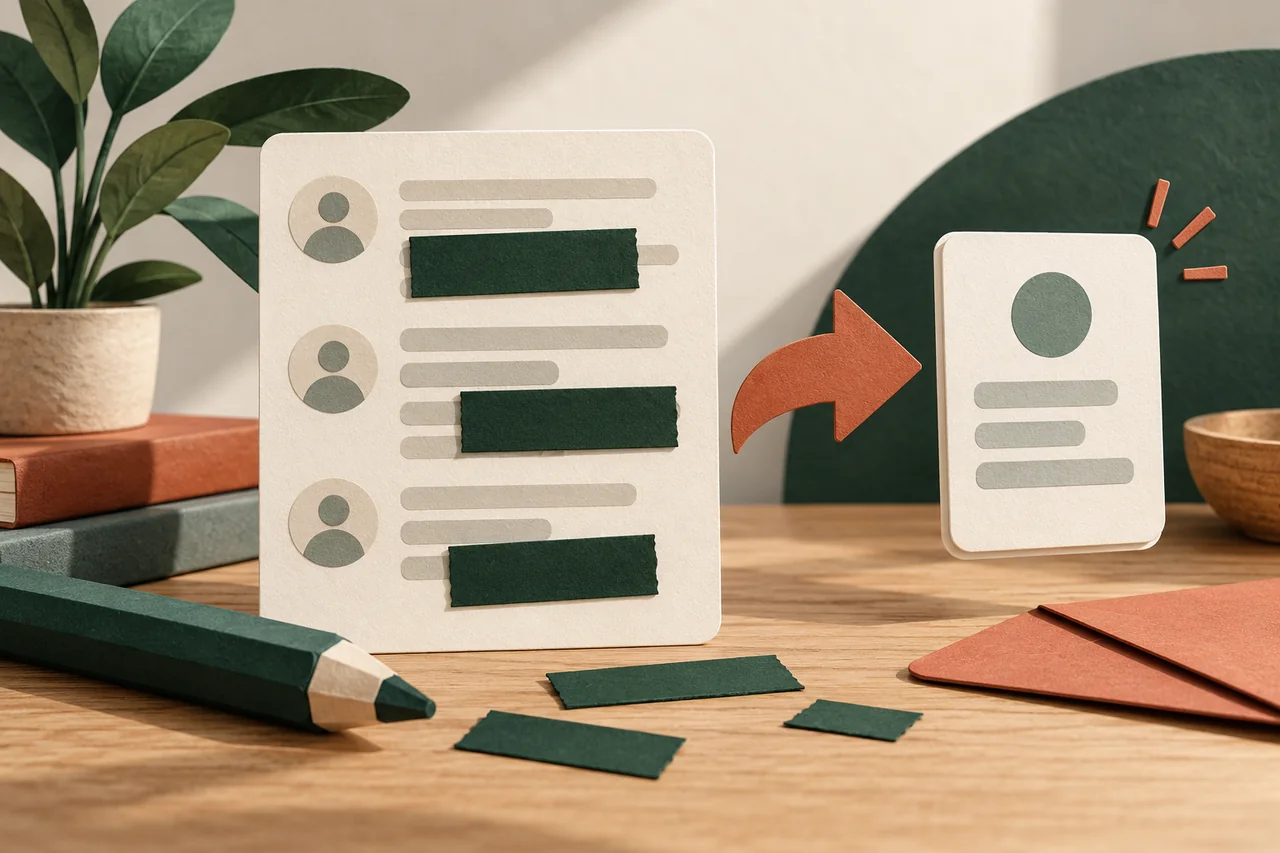
Suitable tools can permanently cover selected text in the exported picture. Microsoft, for example, documents text actions in Snipping Tool; availability and controls depend on the version. Do not rely entirely on automatic detection of phone numbers or email addresses. Names, QR codes and other sensitive details may remain. Open the newly saved file separately and zoom in on the edited areas. Send this checked copy, making sure your attachment picker has not selected the original screenshot with a similar thumbnail.
Common ways a cover-up fails
A translucent marker may leave letters readable. A black rectangle inserted in an editable presentation may be movable. Heavy pixelation is not a universal guarantee of privacy either. The relevant questions are the file format and whether the underlying information has actually been removed or completely covered in the image pixels. Confidential PDFs or legal documents need an appropriate redaction process. If you cannot assess the result confidently, take a new screenshot that excludes the information in the first place.
If you already sent the image
Ask the recipient to delete the screenshot and avoid forwarding it. Use the service’s deletion feature where available, but allow for copies already saved elsewhere. If the image exposed a password, recovery key or other valid access credential, treat that information as disclosed and secure the account through the official service. Editing the image afterwards does not undo the disclosure. For work documents, follow your organisation’s reporting procedure so the responsible team can assess what happened and what response is needed.
Your checklist
The checkboxes are for your own reference. No entries are sent to us. To keep a copy, print the page or save it as a PDF using your browser menu.
Common questions
Is hiding the name enough?
Not necessarily. An address, profile picture, customer number or message content can also identify a person. Inspect the entire image, including its edges.
Can I type out the error instead?
Yes. The precise error wording and a short explanation are often sufficient. Leave out personal identifiers and valid access codes when copying the text.
Is a private chat automatically safe enough?
Images can still be saved and forwarded. Choose the recipient deliberately and send only the information needed for the particular request for help.
Sources and further information
Primary sources from public authorities, consumer organisations and providers. A source may be in another language; follow the guidance that applies to your service and where you live.
- Microsoft: Use Snipping Tool to capture screenshotsSource review date:
- FTC: Heads UpSource review date: