An everyday case of mixed-up access
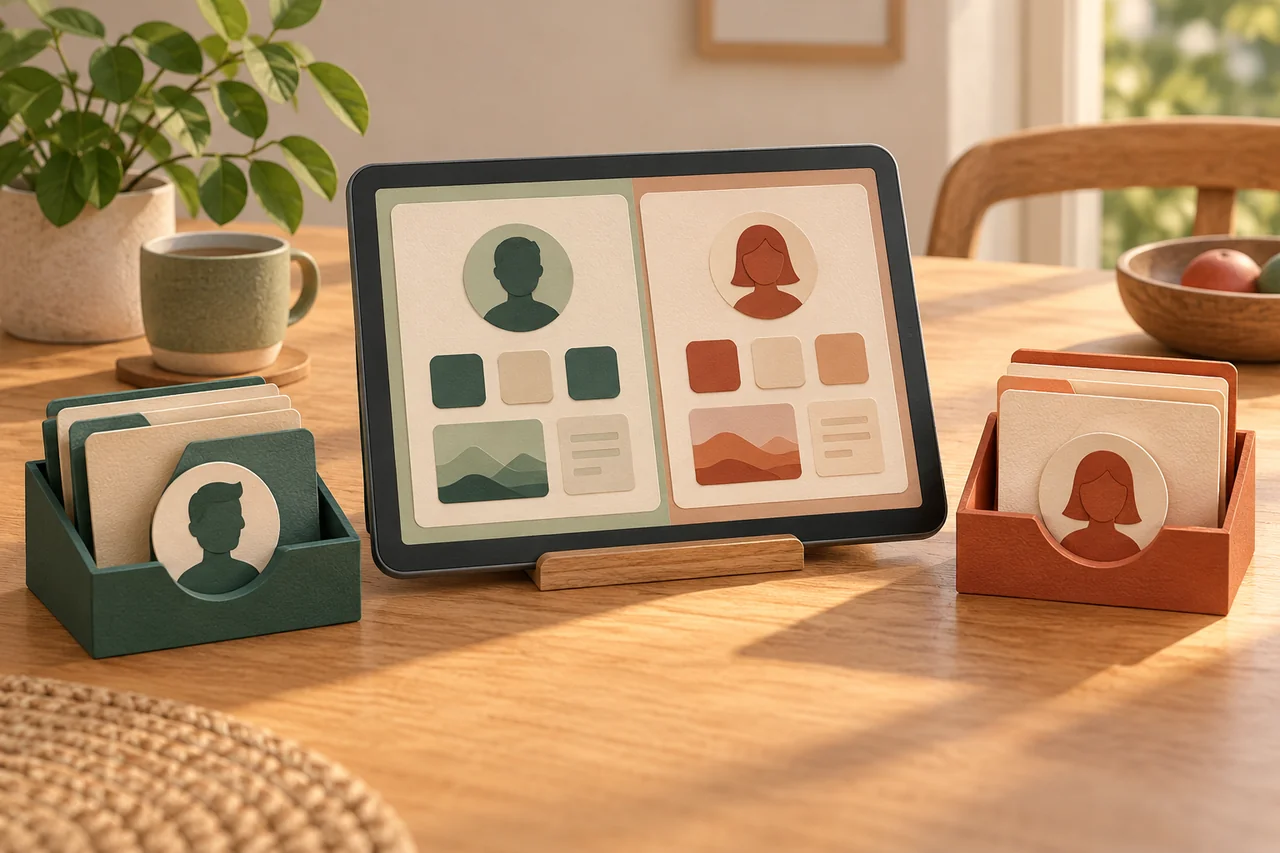
Fictional example: Lara and Ben share a tablet for recipes and travel planning. Opening its mail app unexpectedly reveals Lara’s personal messages. Both assumed closing the app meant signing out. They now decide which shared tasks belong on the device and which personal accounts should not remain open there. The solution begins with those boundaries, rather than adding another privacy application. They also agree to tell one another before changing a setting that affects the shared arrangement.
Check what your actual model supports
Read the manufacturer’s help on users, guests or shared devices. Some Android devices provide separate profiles, but availability is not universal. Apple’s Shared iPad is designed for appropriately managed devices, not a blanket family feature on every privately owned iPad. Several accounts inside an app, or a family-sharing arrangement, are not equivalent to full user separation. Establish which information the feature separates and which settings remain shared. If this is unclear, keep more sensitive activities off the communal device until you understand its limits.
Test boundaries using neutral information
Set up a supported profile according to its instructions and create different harmless test notes. Switch environments and inspect photos, downloads, browser activity and notifications. Check whether the personal environment can be entered without its intended lock. Do not use genuine confidential documents for this exercise. For guest profiles, read whether ending or resetting the session removes guest information. Save anything needed beforehand. Switching profiles and deleting information are different actions; an important family document should not disappear because it was treated as disposable guest material.
Keep things simpler without profiles
If suitable separation is unavailable, use the tablet for shared recipes or publicly accessible information. Handle particularly private accounts on a personal device where possible. When signing in on the shared tablet is necessary, explicitly sign out of the service afterwards and check downloads, open documents and saved sign-in information. Closing a window does not reliably end every session. Private browsing may limit some local traces, but it does not control other apps or protect files already downloaded. Think through the whole task rather than relying on one browser label.
Agree on a fair handover routine
Decide who handles updates, screen locking and shared backups. Before handing over, each person checks the active profile and any sensitive open content. Agree that nobody deletes someone else’s files without asking. Technology should support privacy rather than secret monitoring. Children also need appropriate rules; a guest profile is not a complete child-safety solution. Follow administration policies for workplace or school devices and ask about supported sharing before independently removing accounts or profiles. Review the arrangement when the device or household’s needs change.
Your checklist
The checkboxes are for your own reference. No entries are sent to us. To keep a copy, print the page or save it as a PDF using your browser menu.
Common questions
Does every tablet have a guest mode?
No. Availability and scope depend on the model, operating system and management setup. Use the current instructions for the device you actually own.
Is a different browser enough for privacy?
It can separate workflows, but not necessarily photos, downloads, other apps or device settings. Evaluate the complete situation rather than assuming that changing browsers isolates everything.
Can I simply delete a guest profile?
Only after preserving needed material and informing the person affected. Resetting can remove guest information, so read the confirmation carefully before proceeding.
Sources and further information
Primary sources from public authorities, consumer organisations and providers. A source may be in another language; follow the guidance that applies to your service and where you live.
- Google: Guest and user settingsSource review date:
- Google: Guest profiles and their availabilitySource review date:
- Apple: Shared iPad overviewSource review date: