Start with one event you recognise
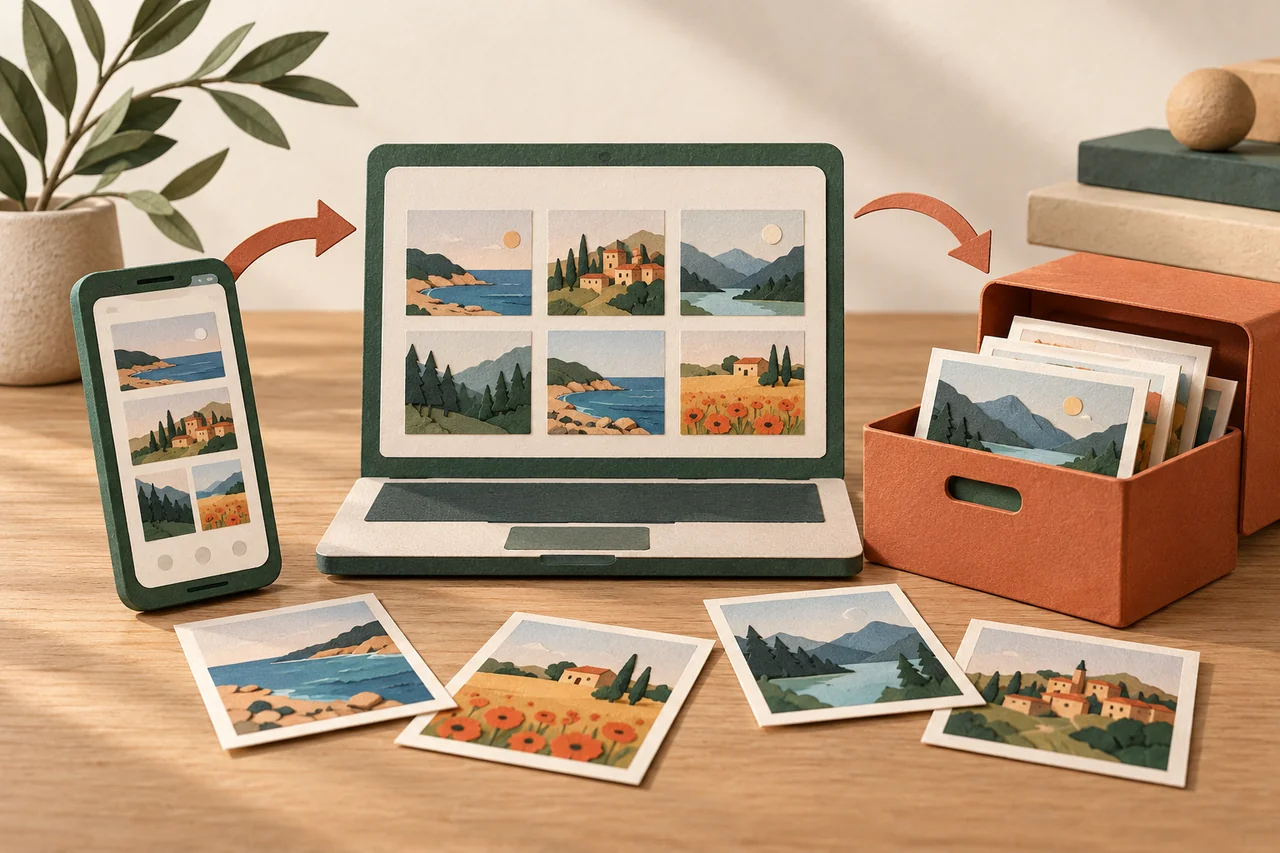
Fictional example: Daniel wants photographs of his mother's birthday. The collection on his current phone begins two years after the event. His old laptop has earlier folders, while an external drive is labelled simply “Photos”. He writes down all three locations. He does not yet know whether the drive contains complete copies. Making that uncertainty visible is the purpose of his inventory.
He starts with one event whose pictures he would recognise. This is easier than trying to organise the family's entire history at once. A useful map is a worthwhile result even if he has not renamed a single file by the end of the session.
Give every location a recognisable description
List devices, memory cards, external drives and cloud accounts that you actually use. A computer previously shared with relatives may also belong on the list. Describe each location clearly enough to find it again: for example, “blue drive in the upper cupboard”. Keep passwords and recovery codes out of the inventory.
Record whether you can access the location, which years it appears to cover and when you checked. A question mark is more useful than a confident guess. If an old drive fails or makes unusual clicking noises, avoid repeated repair experiments when its pictures are irreplaceable.
Several screens do not necessarily mean several copies
Seeing the same photograph on a phone and tablet does not prove that you have an independent backup. Both may display the same synchronised library. With iCloud Photos, deletions affect connected devices; Apple therefore advises keeping additional backup copies of the library.
Open a few selected photographs at full size. A preview or a picture received through a chat may have lower quality than the original file. Record the difference without immediately removing the smaller version. It might contain an annotation or an edit that you still value.
Choose a working collection and record its gaps
For the next stage, choose a clearly identified main collection, such as the one you have checked most thoroughly. This is an organisational choice, not an instruction to empty the other locations. List missing years or events separately, then ask relatives specific questions about them.
Agree who should be able to see any pictures exchanged. For an inventory, it may be enough to know that a relative has the photographs. You do not need to create a publicly accessible folder containing the entire family's collection just to establish where the files are.
Back up before reorganising
After making the inventory, plan an independent backup of important files and check that you can open individual copies. The Swiss National Cyber Security Centre recommends regular backups and recovery tests. Another drive kept in the same unprotected place can be damaged by the same event as the computer.
Keep your inventory with protected personal documents and update it after changing devices. It reveals information about private collections and should not be shared publicly. Old file formats or damaged media may require specialist help. An inventory makes the situation clearer, but cannot guarantee recovery.
Your checklist
The checkboxes are for your own reference. No entries are sent to us. To keep a copy, print the page or save it as a PDF using your browser menu.
Common questions
Do I need to count every photograph?
No. Begin with locations, approximate dates and a few checked examples. An exact file count would not establish completeness anyway.
What about photographs in family chats?
Include the chat as another possible source. For important images, ask whether the sender still has the original, as shared versions may be altered or reduced.
Can I throw away the old drive afterwards?
Only after checking its contents and independently preserving what you want. Secure erasure and disposal are separate tasks.
Sources and further information
Primary sources from public authorities, consumer organisations and providers. A source may be in another language; follow the guidance that applies to your service and where you live.
- Library of Congress: Keeping Personal Digital PhotographsSource review date:
- BACS: DatensicherungSource review date:
- Apple: Set up and use iCloud PhotosSource review date: