Begin with a specific situation
Fictional example: Tom receives several discount alerts during dinner. He still wants his sister to be able to reach him, so he does not want to silence the whole phone. He opens the shopping application’s notification settings and checks whether promotions can be controlled separately from order information.
His goal is specific: fewer sales prompts while remaining available to family. That is easier to implement than a general wish for the phone to “stop bothering me”. The suitable settings depend on his device, application and real responsibilities, rather than a universal productivity rule.
Sort alerts into three groups
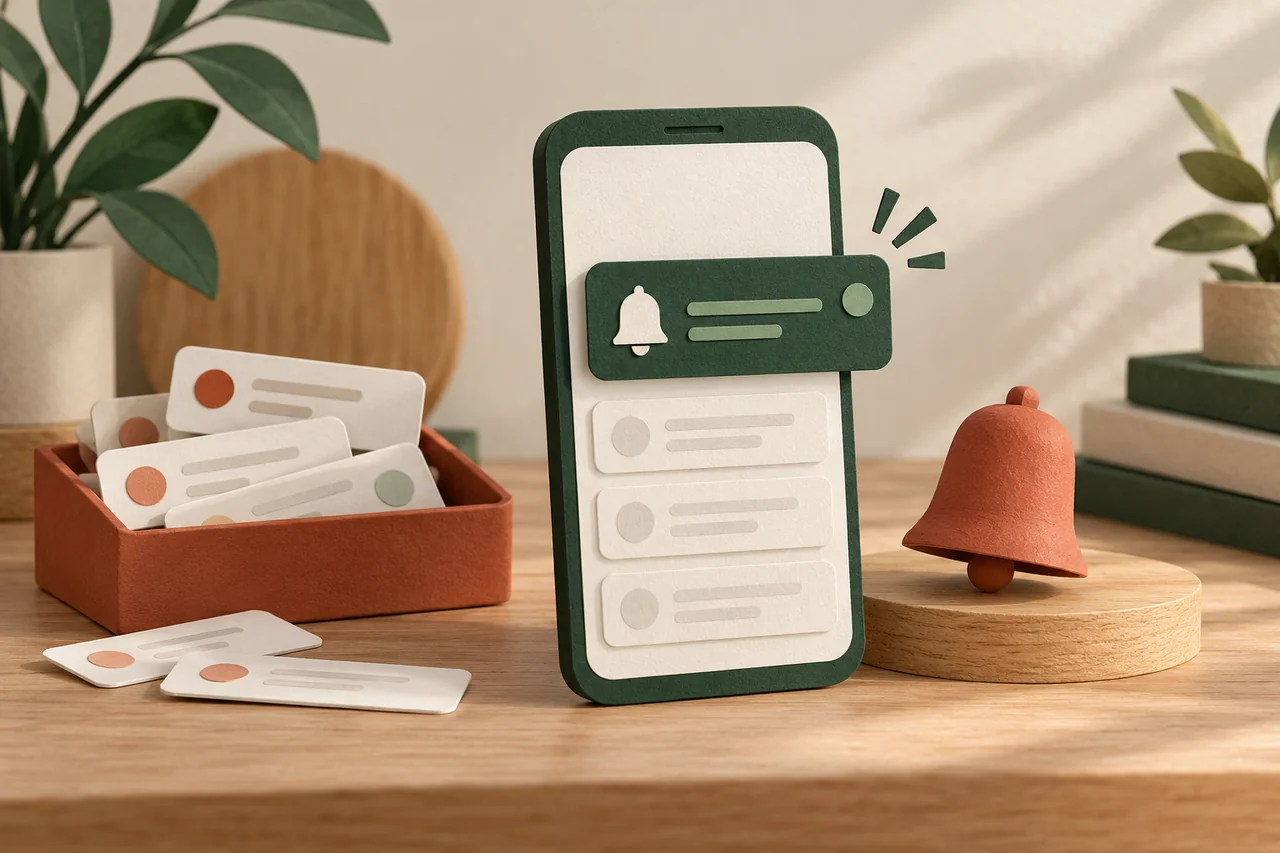
Distinguish messages requiring a prompt response, information you can check later and alerts you do not need at all. An expected delivery update may belong in the second group; an account-security alert deserves its own considered decision. The volume or tone chosen by an app does not establish urgency.
Begin with a few applications instead of changing everything at once. Note what you adjust. If something useful disappears, it will be easier to identify the cause. Settings should fit your circumstances; the same arrangement will not be appropriate for every person or every day.
Check both the application and the operating system
Android and iPhone provide application-level settings, while some apps also have their own categories or switches. Available controls differ. Examine the system settings and, where relevant, the notification options inside the application itself rather than assuming one screen controls everything.
You may be able to control sounds, banners and previews separately. A silent notification is not the same as notifications being disabled entirely. Read the selected option’s explanation and test a harmless message instead of inferring its effect from a short label alone.
Review the lock screen and necessary exceptions
Consider whether private message text, codes or other confidential details should be visible while the device is locked. Manufacturers provide ways to restrict previews. Inspect the actual locked screen afterwards; looking at the unlocked application does not demonstrate the same situation.
If you use a focus or quiet mode, check important contacts and deliberate exceptions. Do not disable security, health or emergency functions wholesale just to quiet a shopping application. Their availability and behaviour can depend on the device and where it is used.
Adjust after an ordinary day
Observe a normal day: which interruptions have disappeared, and which useful messages are now missing? Open the relevant applications deliberately at a suitable time when needed. Fewer push notifications do not mean that incoming messages, information or responsibilities have ceased to exist.
Keep adjustments small and reviewable. Look again after changing devices or installing a major update. This guide is about organising notifications. It does not promise a particular improvement in concentration or provide treatment for sleep problems, anxiety or stress.
Your checklist
The checkboxes are for your own reference. No entries are sent to us. To keep a copy, print the page or save it as a PDF using your browser menu.
Common questions
Does silent mean off?
No. A silent notification may still be visible. Its exact behaviour depends on the feature you selected.
Should I put every notification in a summary?
Only where a delay suits the information. Consider time-sensitive alerts and contacts you need to hear from separately.
Can I reverse the changes later?
Ordinary notification settings can be changed again. Record the starting setting if unsure and adjust only one thing initially.
Sources and further information
Primary sources from public authorities, consumer organisations and providers. A source may be in another language; follow the guidance that applies to your service and where you live.
- Google: Control notifications on AndroidSource review date:
- Apple: Change notification settings on iPhoneSource review date: